
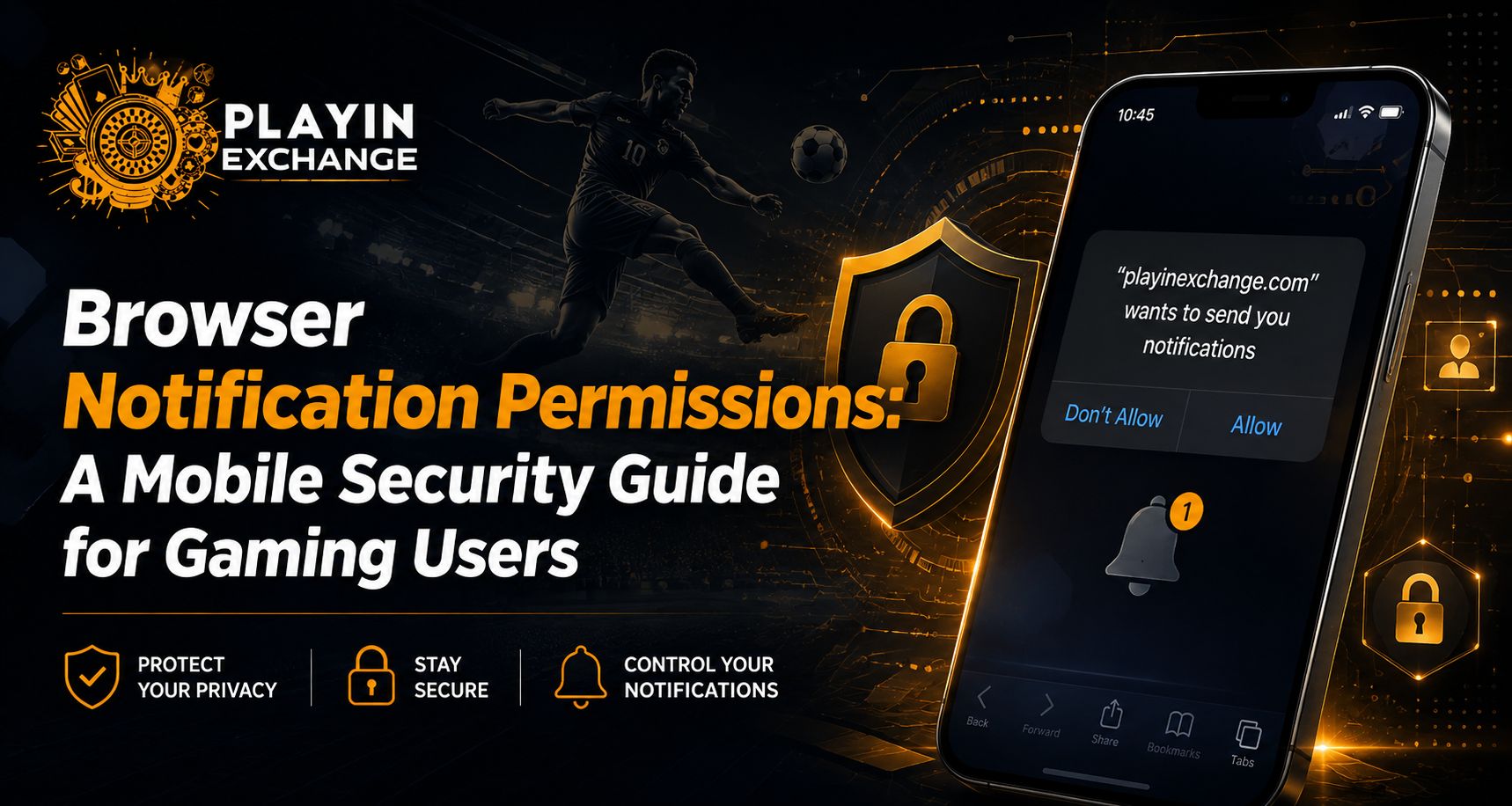
Mobile browser notifications can be useful for account alerts and important service updates, but giving permission to every website can create unnecessary distractions and security risks. For users accessing Playinexch on a smartphone, understanding what a notification request actually allows is an important mobile-security habit. Modern browsers require websites to request permission before sending notifications, and users can later change or remove that permission through browser or device settings.
What Are Browser Notification Permissions?
Browser notifications allow an approved website or web app to send alerts even when you are not actively viewing that particular page. The feature depends on browser and operating-system support, and web notification functionality generally requires a secure HTTPS context.
For someone using Playinexch Login on mobile, a permission prompt should therefore be treated as a separate choice from signing into an account.
Allowing notifications does not mean you should automatically approve other permissions such as:
- Camera access
- Microphone access
- Location access
- File access
- Contacts
- Clipboard permissions
Each permission should be considered individually.
Why Gaming Users Should Review Notification Requests Carefully
Gaming and entertainment websites can generate frequent alerts. While some may be useful, excessive notifications can make it harder to recognise genuinely important account or security messages.
A user accessing Play Exchange should ask three questions before selecting Allow:
- Do I recognise and trust this website?
- Do I actually need notifications from it?
- Can I identify why the site is requesting permission?
Google Chrome gives Android users the ability to enable or disable notifications for individual websites rather than using one setting for every site.
1. Do Not Automatically Tap “Allow”
Permission prompts should not become automatic clicks.
If a page asks for notifications immediately after opening and you do not yet understand why, selecting Block or simply dismissing the prompt is reasonable. You can usually change the setting later if notifications become useful.
For users managing a Playinexch ID, taking a few seconds to inspect the website first is safer than approving permissions simply to remove the pop-up.
2. Check the Website Before Granting Permission
Look carefully at the domain shown in your browser before allowing alerts.
Notification permission should only be considered after confirming that you are on the intended website. A misleading or imitation site may use notification access to send repeated promotional messages or links designed to bring users back to suspicious pages.
Web notifications are powerful specifically because approved sites can deliver alerts outside the active webpage, making careful permission decisions important.
3. Manage Website Notifications on Android
Chrome provides direct controls for individual website permissions on Android.
Google’s current instructions allow users to open the relevant website, access its site information, choose Permissions and then change the Notifications setting. Chrome also allows individual site permissions to be reset.
If Playinexch Login notifications become unnecessary, reviewing the site permission is better than simply ignoring every alert.
You can periodically check:
- Which websites can send notifications
- Whether old websites still need access
- Whether unknown sites appear in the permission list
- Whether notifications are excessive
4. Understand Notifications on iPhone
Apple also gives users control over notification access at the operating-system level. Notification settings can be adjusted from the iPhone Settings app, including whether alerts appear and whether previews are displayed on the Lock Screen.
For web push specifically, Apple supports notifications for eligible web apps added to the Home Screen. Those web apps can ask users for permission and their alerts integrate with the normal iOS notification system.
A Playinexch Online ID user should therefore review both browser or web-app permissions and phone-level notification settings when necessary.
5. Hide Sensitive Notification Previews
A notification can reveal information even when your phone is locked.
If other people sometimes have physical access to your device, consider limiting what notification previews show on the Lock Screen. Apple lets users choose whether notification previews appear always, only when the device is unlocked, or never.
For Play Exchange account users, this can help keep account-related alerts away from casual viewing.
6. Do Not Trust a Notification Just Because It Appears on Your Phone
Permission to send notifications does not prove that every message is trustworthy.
Avoid entering passwords, verification codes or financial information simply because an alert creates urgency. Instead, open the recognised website independently through your browser or saved bookmark when checking an important account message.
For a Playinexch ID, verification codes and credentials should remain private even if a notification claims immediate action is required.
7. Remove Permissions You No Longer Need
Notification permissions do not have to remain enabled forever.
Chrome allows users to change or reset permissions for individual sites, while Android also provides broader controls over notification behaviour.
Regularly reviewing permissions for old gaming, shopping and entertainment websites can reduce clutter and make important alerts easier to identify.
A Simple Mobile Notification Security Checklist
Before allowing browser alerts, check:
- Confirm the website address
- Understand why notifications are needed
- Reject unnecessary permission requests
- Limit Lock Screen previews where appropriate
- Remove permissions from unused websites
- Never share OTPs or passwords through notification prompts
- Review mobile notification settings periodically
For users with a Playinexch Online ID, these habits provide a simple layer of protection without making everyday mobile browsing difficult.
Conclusion
Browser notifications are useful when they are controlled rather than automatically accepted. Android Chrome lets users manage website notification permissions individually, while iPhone users can control how notifications appear and manage supported web-app alerts through iOS settings.
For Playinexch users, the safest approach is straightforward: approve only notifications you genuinely need, verify the website first and periodically remove permissions that no longer serve a purpose.
Good mobile security is often built from small decisions, and managing browser permissions is one of the easiest places to start.
FAQs
Are browser notifications dangerous?
Not inherently. They can be useful, but unnecessary or untrusted website permissions can create unwanted alerts and expose users to misleading links.
How can I disable a website’s notifications in Chrome on Android?
Open the website in Chrome, access the site information and permissions controls, then change its Notifications setting.
Can websites send notifications without permission?
Modern web notification systems require permission from the user before a site can send web notifications.
Can iPhone web apps send push notifications?
Yes. Apple supports Web Push for supported web apps added to the Home Screen, subject to user permission.
Should I allow notifications from every gaming website?
No. Allow notifications only when you recognise the website and genuinely want its alerts. Permissions can be reviewed or removed later through browser or device settings.